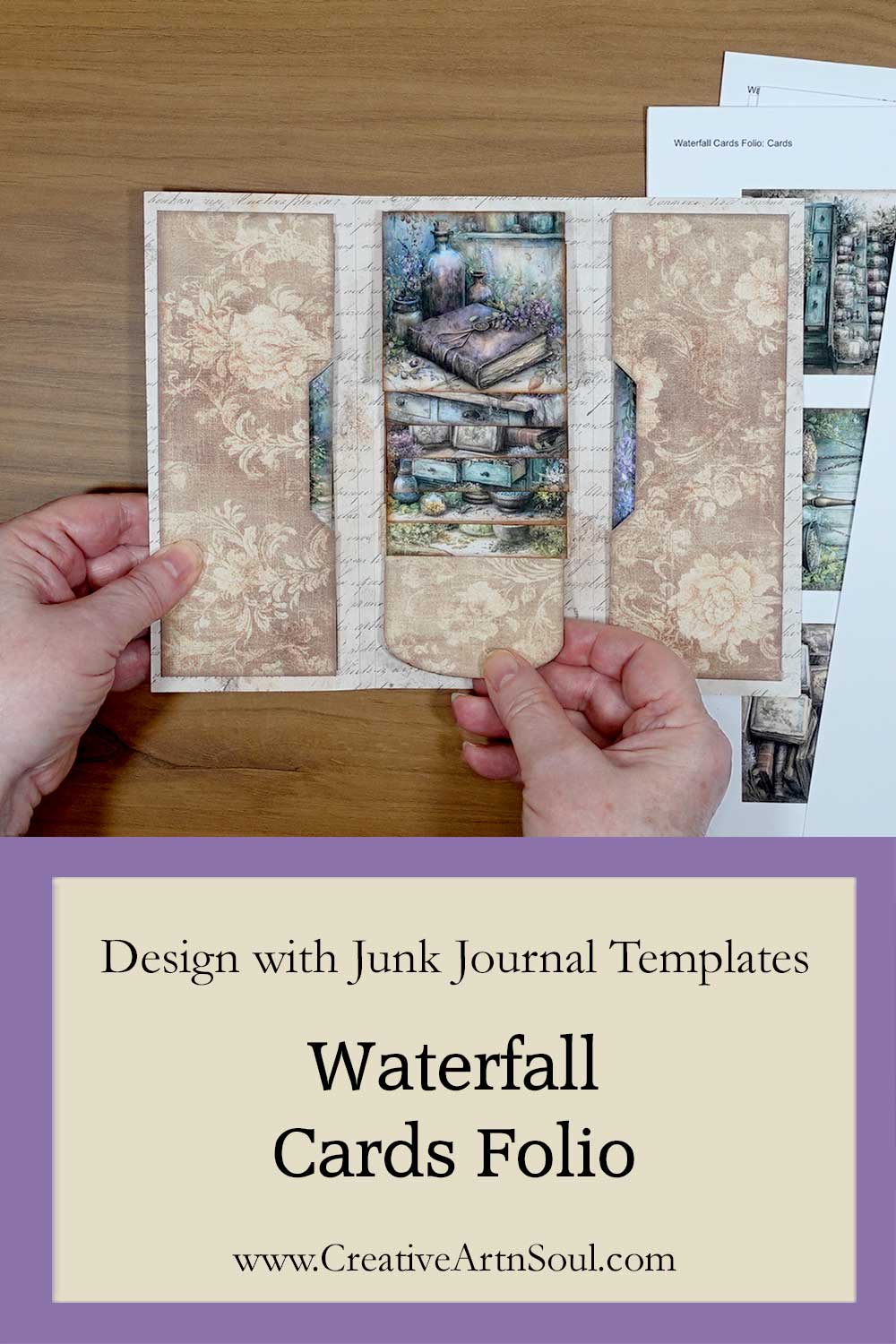
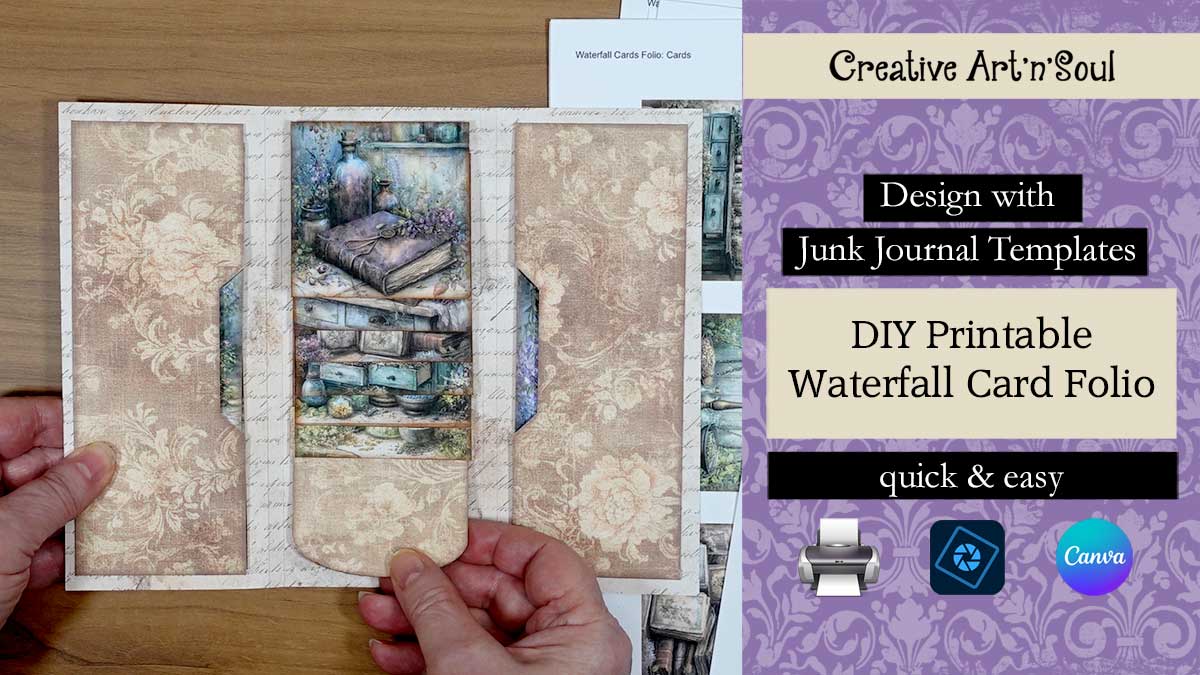
Make your own printable junk journal waterfall cards folio that is perfect to use as an embellishment in all your junk journals.
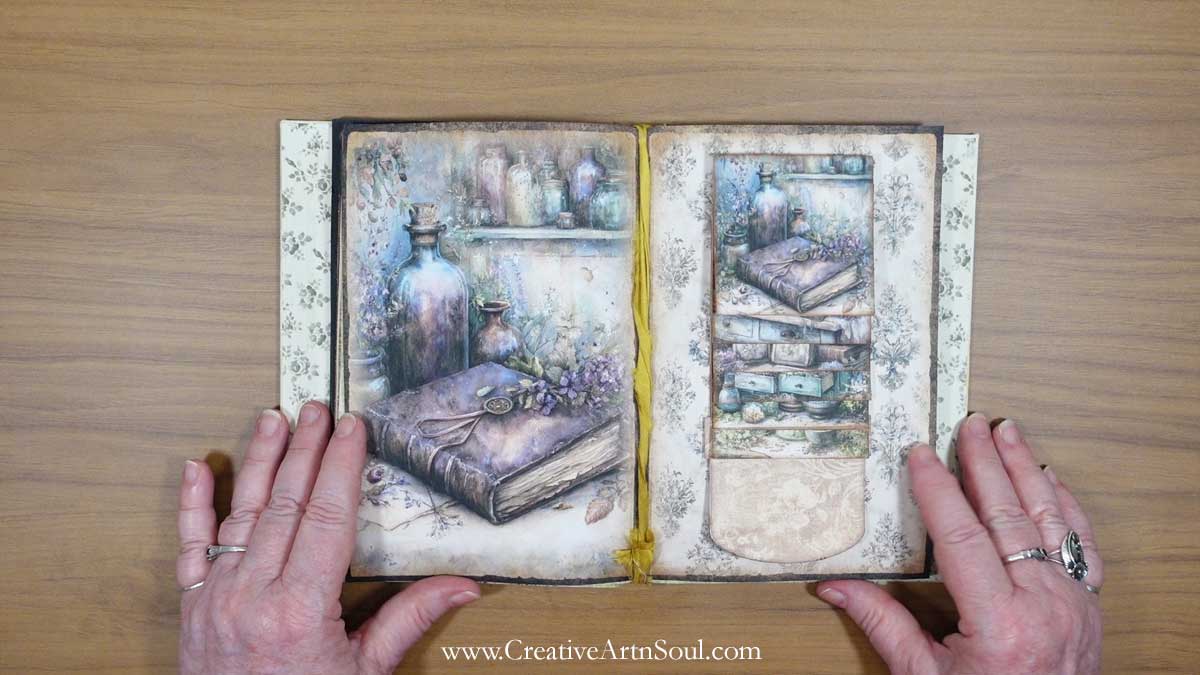
If you love adding little surprises to your junk journals, a waterfall cards folio is a fun project to try. Open the cover and you’ll find a layered arrangement of cards that flip up one by one when you pull the tab.
The waterfall cards folio template set makes it easy to create this interactive project using your favorite digital papers. Choose vintage florals, botanical prints, or a mix of scraps from your stash to give your folio its own character. You can decorate each card differently while using coordinating colors and patterns to bring the whole piece together.
Tuck your finished folio into a journal pocket, give it as a small handmade gift, or attach the waterfall cards assembly directly onto a junk journal page for a unique embellishment. Instead of using images, you can fill the cards with handwritten notes, favorite quotes, or photos.
DIY Printable Waterfall Cards Folio
Watch the full step-by-step tutorial
Supplies
- Waterfall Cards Folio Template
- Epson EcoTank Printer
- Cardstock
- Scoreboard
- Double Sided Tape 1/2″
- Double Sided Tape 1/4″
- Double Sided Tape 1/8″
- Bone folder
- Ink pad
- Ink pad applicator
About the Templates for the Waterfall Cards Folio
This template set includes a trifold cover with pockets and cards on the inside cover, together with a set of 6 waterfall cards with pull tab on the center section. It comes in three different formats:
- The pdf format is easy to print and can be used with your own printed papers or scrapbook papers.
- The png format can be used in a photo editing program such as photoshop, photoshop elements or Photopea, which gives you more creative options for designing using digital papers.
- The canva frame templates can be used in canva.
The waterfall cards assembly can be used with the included folio, or alternatively you can use it by gluing it directly onto the pages of your junk journals.
The template pages are designed to print on US letter size paper, however you can also print them onto A4 size paper.
How to Design using the pdf Format Template Files
The pdf templates are easy to use with your own printable papers or scrapbook papers.
Open the pdf template file and select the page that you want to print.
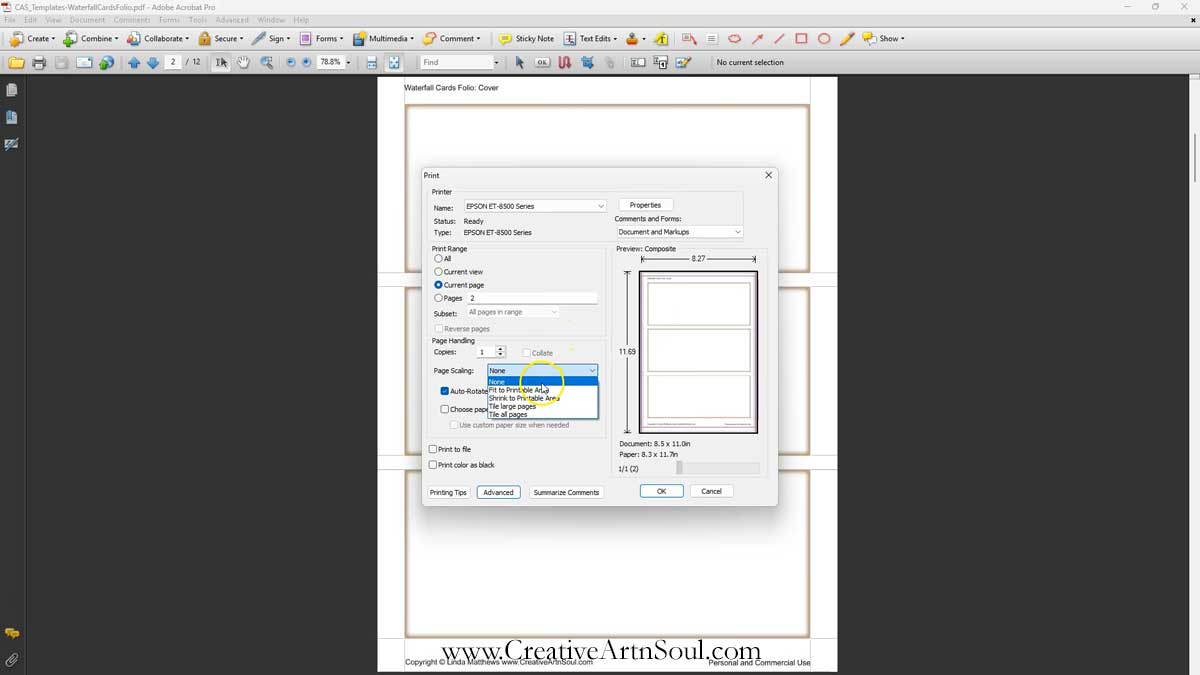
In the print dialog box make sure the page scaling option is set to none so that the template prints at the correct size. The wording for this may be different depending on the software that you use.
Insert a sheet of printed paper or scrapbook paper into your printer and then print the template page.
How to Design using the png Format Files in Photoshop
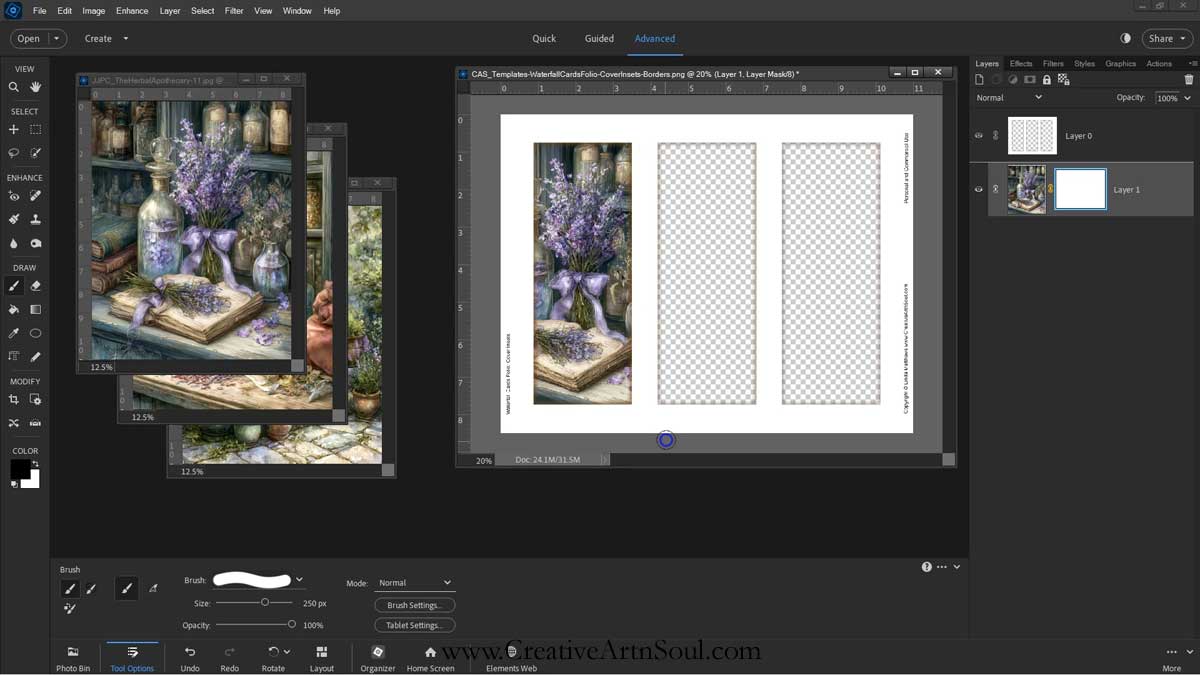
To get started designing using the png format files, open one of the templates in your photo editing program. I’m using photoshop elements however you could also use photoshop, or photopea which is a free photoshop alternative, or any other similar type of program.
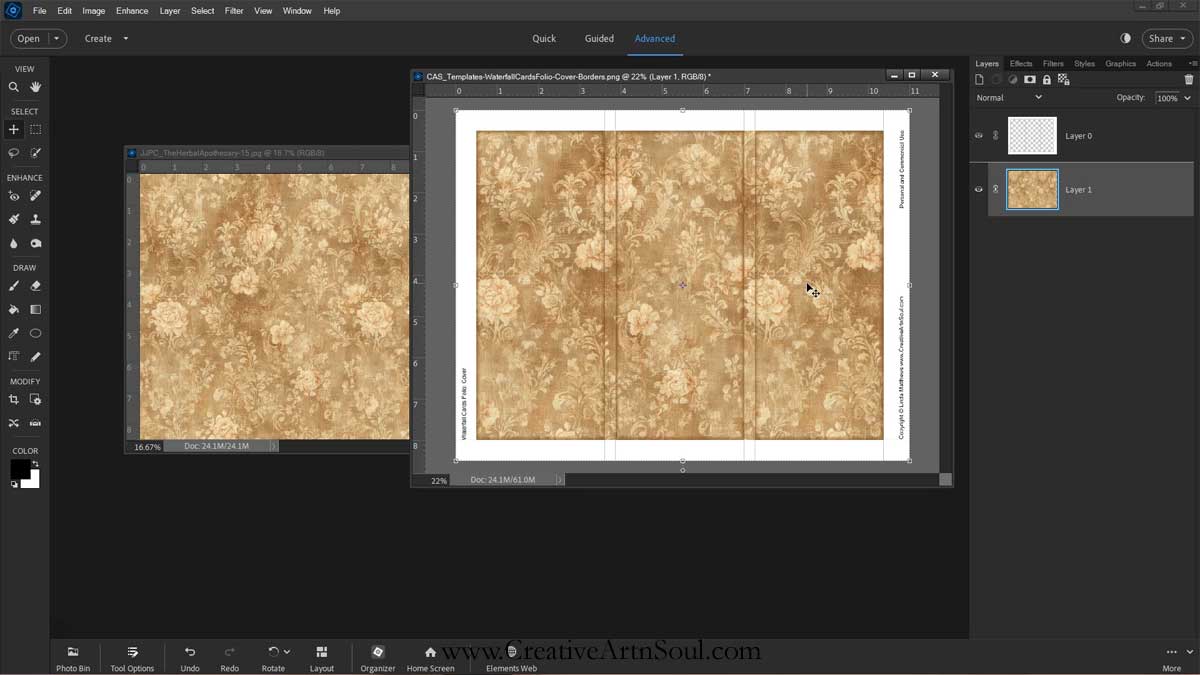
Add a digital paper and move it to a layer underneath the template layer.
To add the digital paper you can use the menu commands to select, copy and paste, or simply drag the image out of the frame and onto the document.
For this tutorial I’m using papers from the Herbal Apothecary paper pack.
You can design the using one paper, or multiple papers. When using multiple papers, you can position and resize them to fit within the individual elements on the template.
Use a Layer Mask
If one of the papers overlaps the other, use a layer mask to hide the overlap. To use a layer mask, select the layer then click the layer mask icon. Select a hard brush and make sure that the opacity is set to 100%. Then select the color black and brush away the overlap.
You need six waterfall cards to create the waterfall effect, so all you need to do is use the waterfall cards template twice to create the two sets.
Once printed and cut out, the cards are folded so they have a backing on the underside. So if you’re using a directional paper for the backing you’ll want to flip it 180% so it prints in the correct direction.
Once you’ve completed your designs you can print the files directly from your software, or save the files in jpg format for printing at a later time.
How to Design using the Canva Frame Templates
As well as designing in programs like photoshop, you can also design the waterfall cards folio in canva using the canva frame templates.
To get started, log into your canva account. Then click the link to the canva template. You can find the link in the document that’s included with your download.
The templates include individual frames for each element as well as as overlays with lined edges and vintage style border.
To upload your background paper files click the uploads button on the sidebar. You can use the “upload files” button and select the files from your desktop. Or drag the files out of the folder and drop them onto the canva editor.
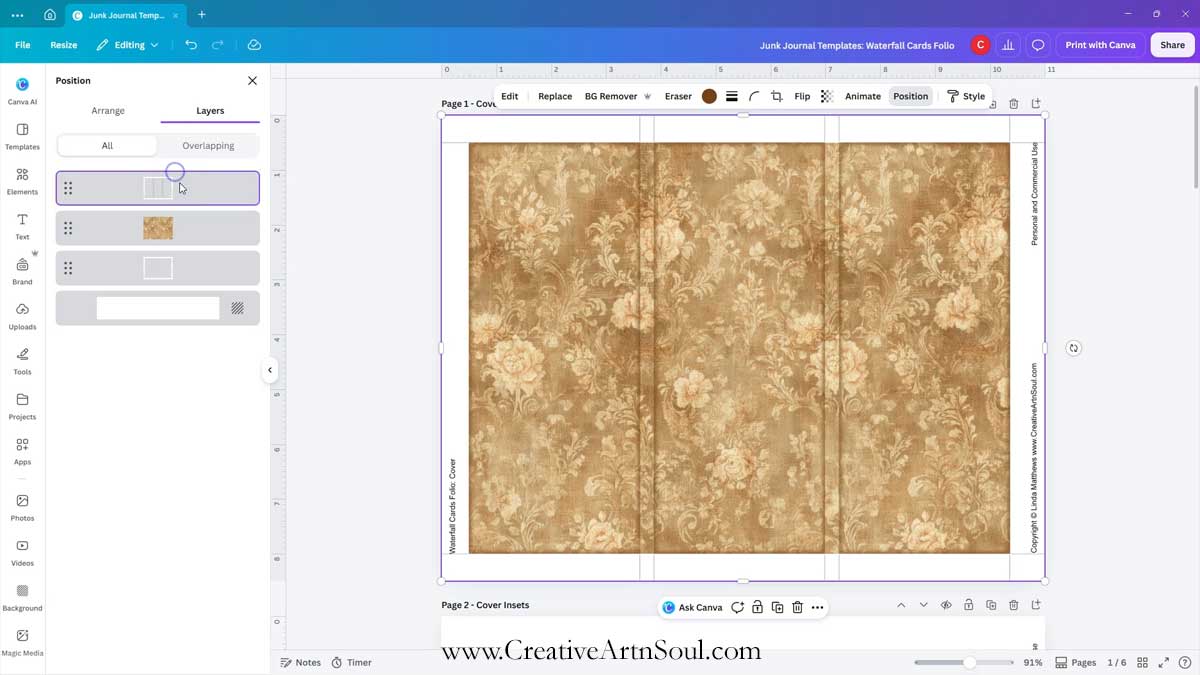
To insert the papers into the frame, drag the paper over the frame until it clicks into place. Then move the template overlays to the top layer. To do this, click on the background paper then click the “position” button on the top menu. Select the “layers” tab and then you can drag the layers into the correct order.
Template Overlays
The template overlays are located underneath the frame layer. There are two templates, one with a vintage style border and one with lined edges. Drag the template you want to use to the layer above the digital paper layer.
To adjust, resize and reposition the paper, double click on it and move it around using the handles. When you’re done, click on the background to exit.
Instead of using the individual frames, you can add one paper to cover the whole of the background area. To do this, click on the thumbnail then move the paper to the top left corner and resize it to cover the background area. You can use the control or command keys on your keyboard to prevent the paper from snapping into the frames.
Then move the overlay template to the top above the paper layer.
Download The Pages
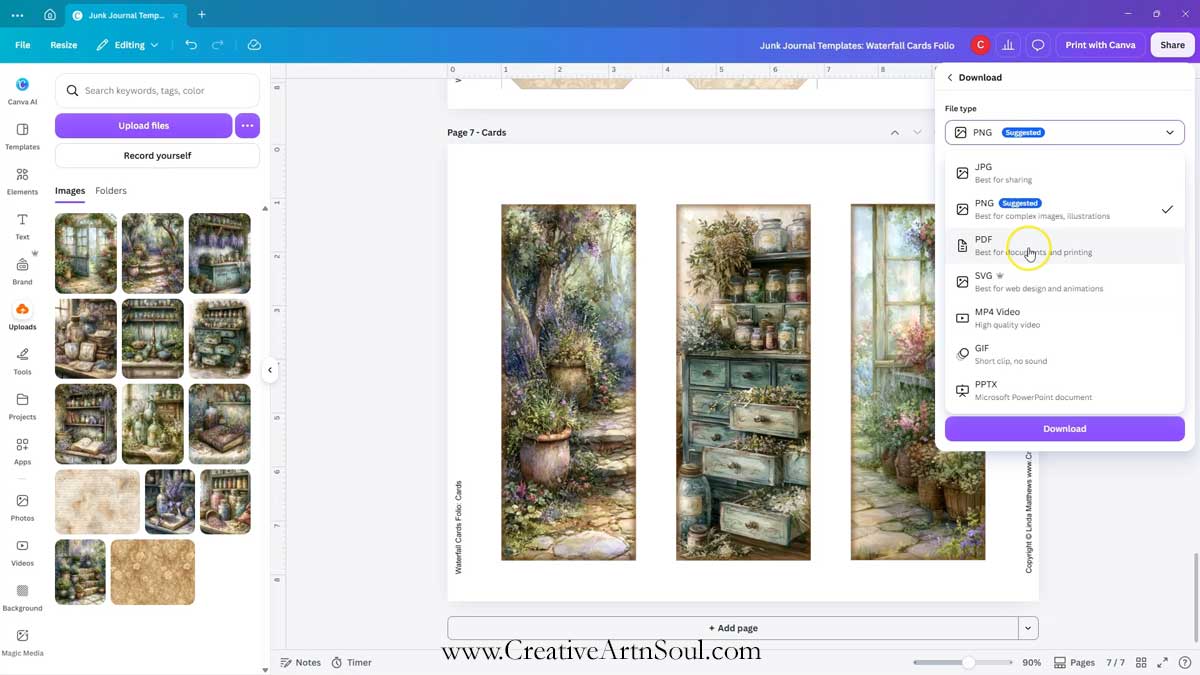
Once your designs are complete, download to your desktop for printing. Click the share button and then download. Select file type pdf then click the download button.
How to Assemble the Junk Journal Waterfall Cards Folio
To assemble the folio, print each of the pages onto a sheet of cardstock and make sure to print a full page design on the back of the folio cover. I’ve used 110lb cardstock which is quite thick and sturdy.
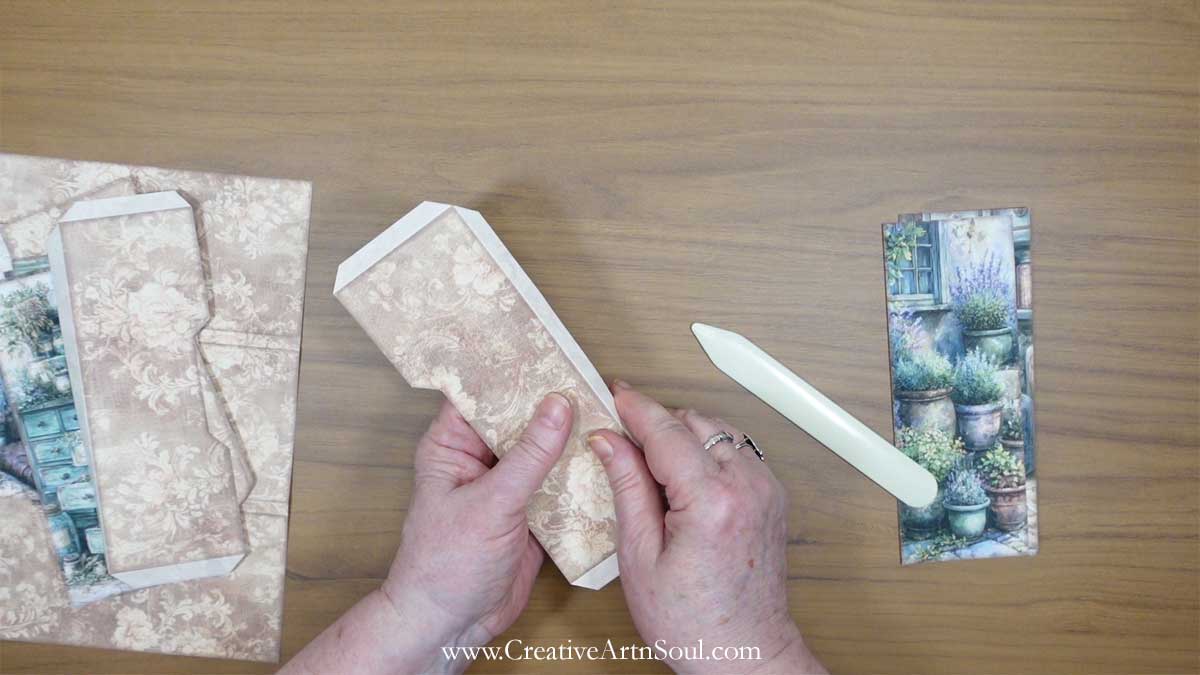
Make creases along the cover, the waterfall cards and backing, and the pocket tabs, using the marked lines as guides then cut out all the pieces.
Fold all the creases over on the cover, the waterfall cards and backing, and the pocket tabs and press with a bone folder.
Make the Folio Cover
Center and glue the three cover insets onto each of the sections on the upperside of the cover. Using several layers of cardstock glued together helps to make the cover more sturdy and long lasting.
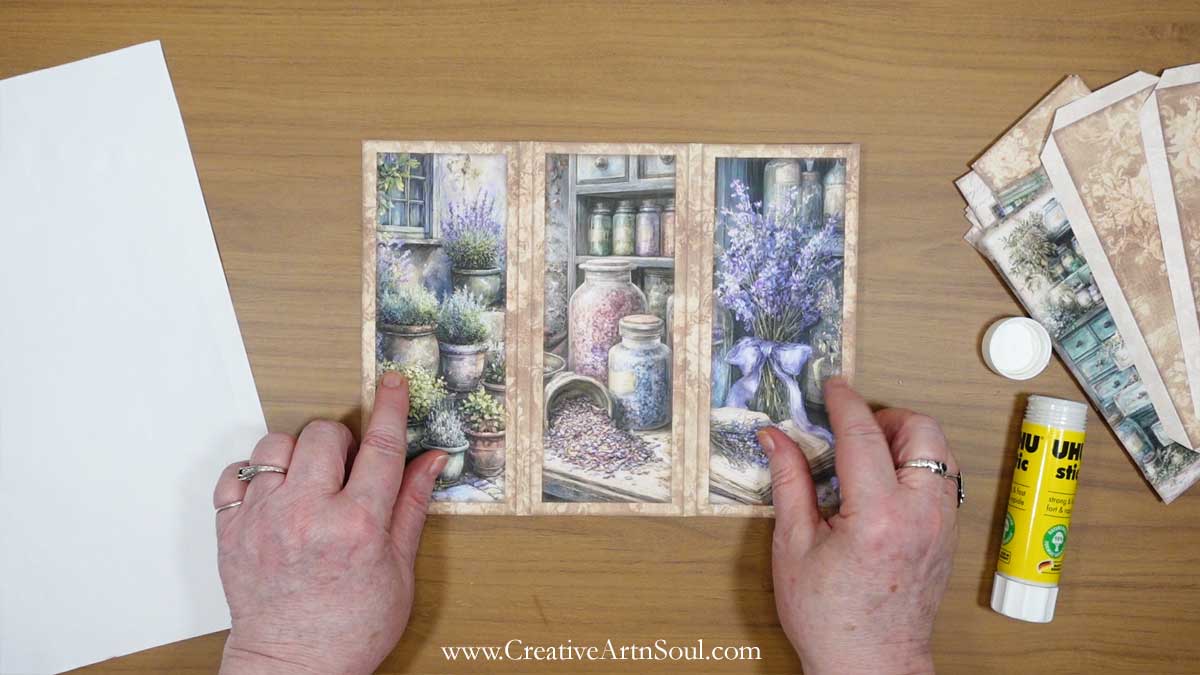
Make the Waterfall Card Section
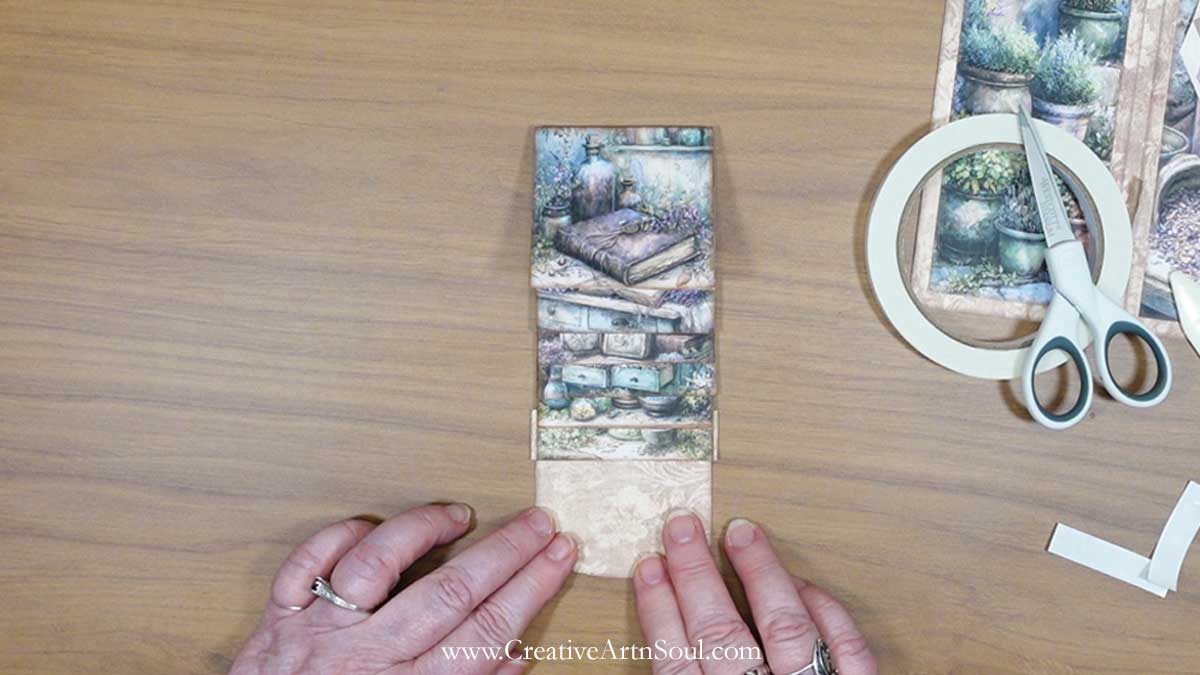
Fold each of the waterfall cards in half and glue the sections together.
Apply a piece of double sided tape to the top section of the waterfall cards backing and attach the squared off edge of the pull tab. Then glue the pull tab backing to the underside of the pull tab. Fold the backing section over and make sure that it folds easily. If there are any white bits showing, trim them away with a pair of sharp scissors, or apply some distress ink to hide them.
Then apply pieces of double sided tape along each of the six sections on the waterfall card backing.
Starting with the bottom section and working your way up, peel away the tape backing, carefully align the top of the card, and press it in place.
With the cards facing up, wrap the pull tab band loosely around the pull tab leaving about 1/8″ of an inch extending on the side, then press the folds with your finger. This will help the band to move easily as you pull it.
Open the band and apply double sided tape to the left and right sides of the fold on the inside of the band,
Remove the tape backing, wrap the band around the backing section and align the bottom edges then press in place. The band should be attached to the upperside of the backing. Then insert the pull tab through the bad opening on the back.
Make the Pockets
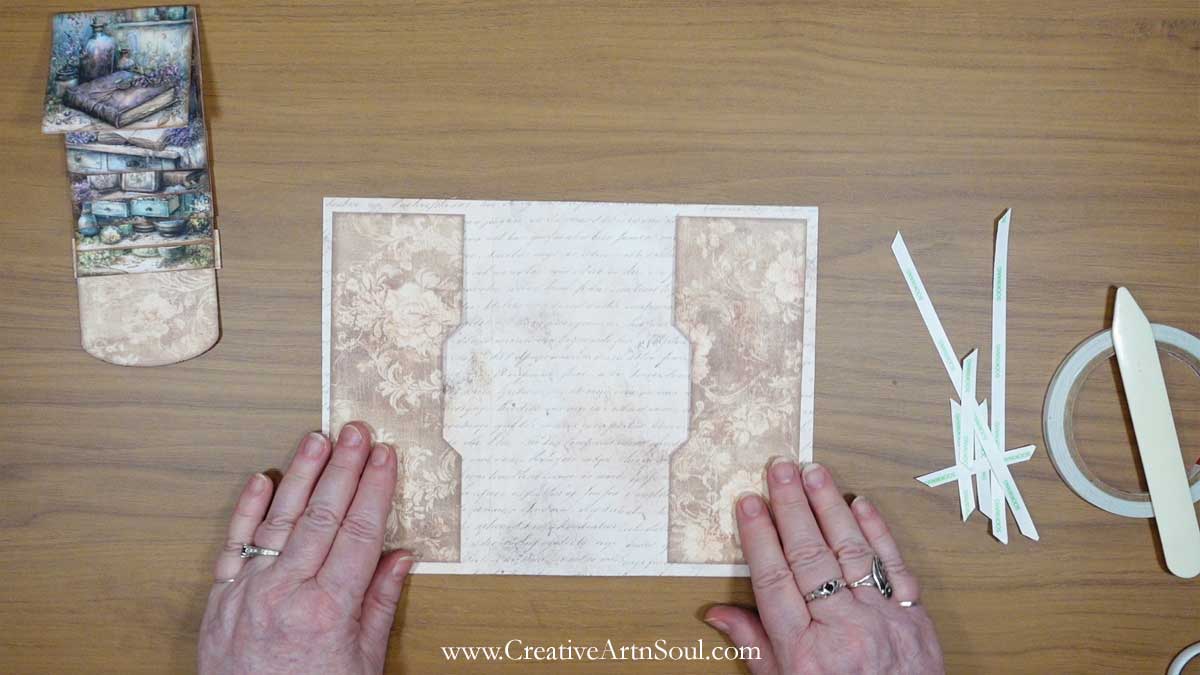
Apply double sided tape to the tabs on the pockets then press the pockets in place on the left and right sections on the inside of the folio cover.
Attach the Waterfall Cards to the Cover
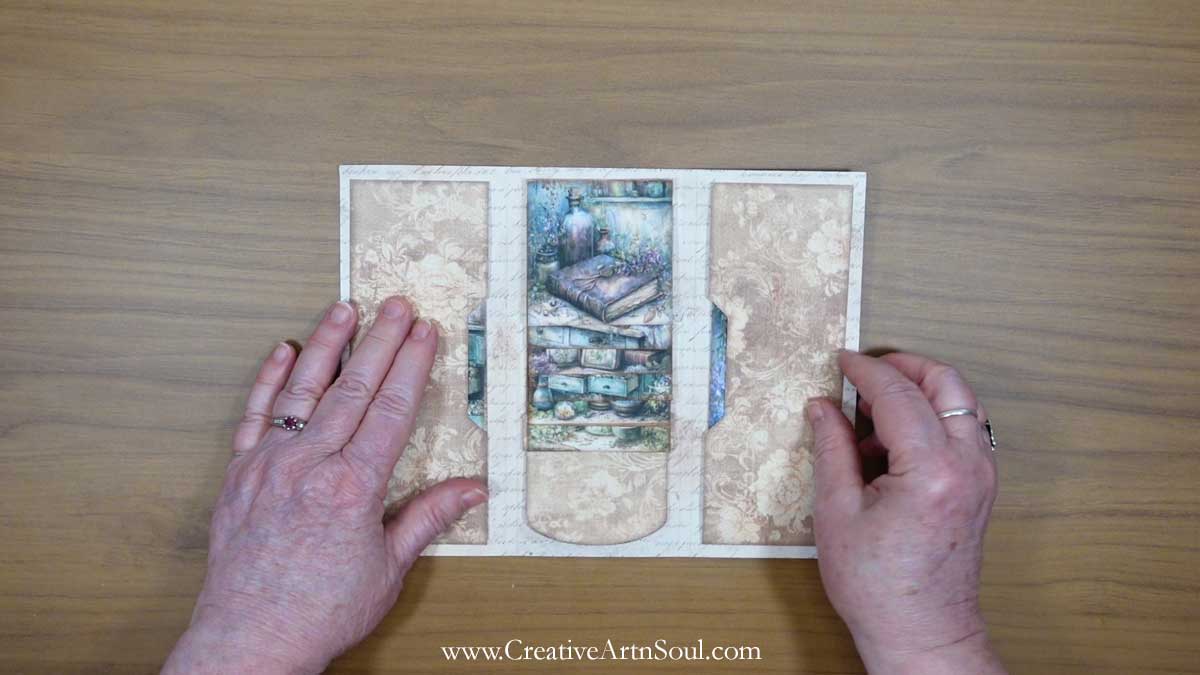
Attach a piece of double sided tape to the back of the band on the pull tab and press the band in place on the center section of the folio cover.
If you find that the pull tab catches on the last card section, apply a bit of sticky tape to cover the edges of the pull tab where it connects to the card backing. This will help to make it run more smoothly.
Once the waterfall card section is glued onto the cover, gently pull the tab and the cards should flip over in sequence.
An Alternate Option
An alternate way to use the card section, is to the glue the band on the pull tab directly onto a junk journal page.
Save this pin to your favorite Pinterest board!