Learn just how easy it is to print and resize junk journal printables so you can get the most use out of them.
Junk Journal Printables are fun, creative, and easy to use. All you need to do is to purchase the digital file, download it, print it out and use it! It couldn’t be any easier. And the best thing about junk journal printables is that you can print them out and use them over and over again.
When you purchase a printable pdf file, it’s usually designed to print in one particular size. While the original size might be ideal for your purpose, there are times when you might want to print the file in a different size so you can reuse it in a different way.
Although at first glance it might seem difficult, pdf files are flexible in their use so it’s quite easy to print and resize junk journal printables and scale them to size.
Print and Resize Junk Journal Printables
Resources
- Epson eco-printer
- 24lb copy paper
- 32lb copy paper
- cardstock
- Adobe Reader – free pdf reader
- PDF to JPG – free pdf converter
- 7-Zip – free file unzipper (windows)
- The Unarchiver – free file unzipper (mac)
- Photoshop Elements
- Photoshop
Printers
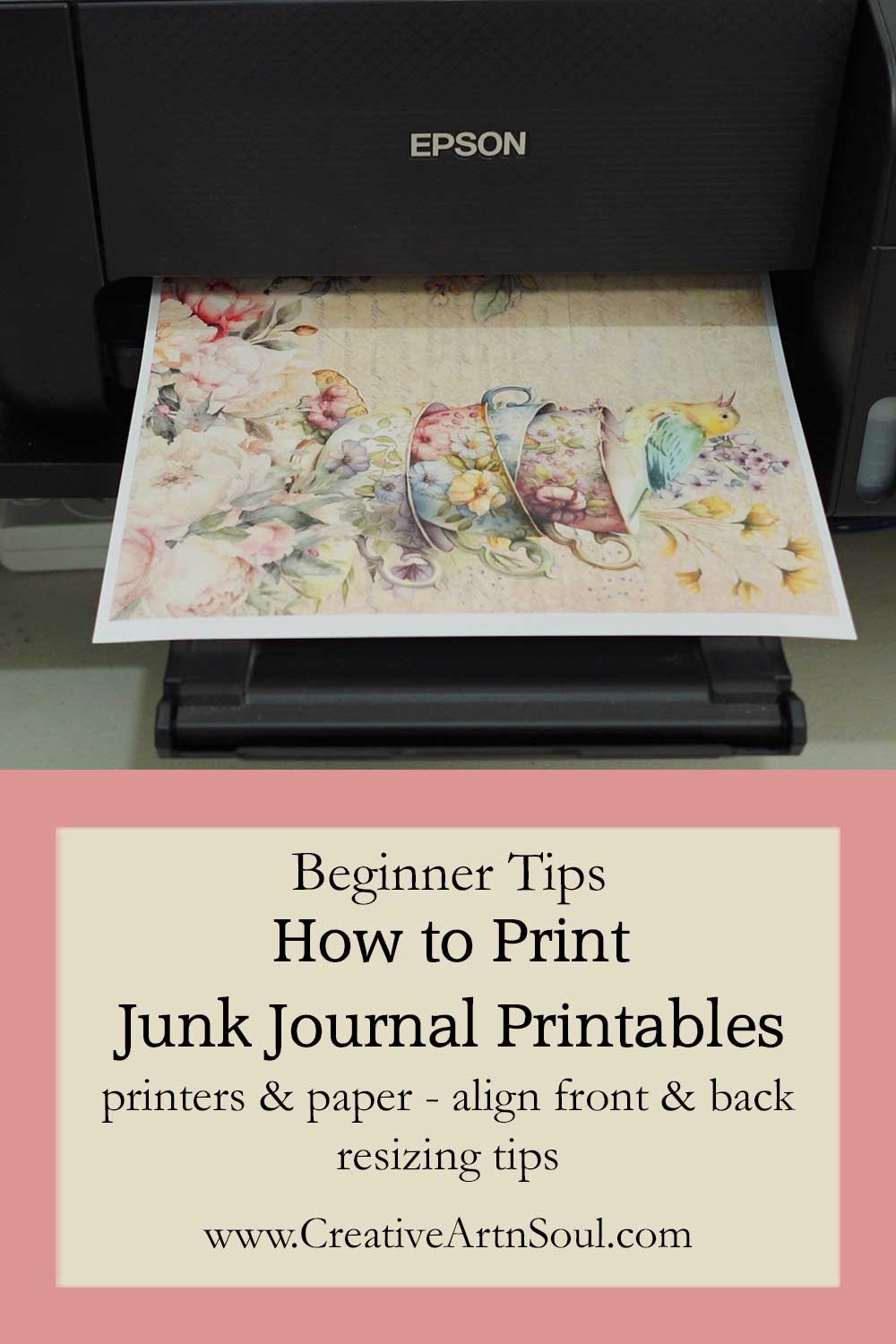
The printer that I use to print all my junk journal printables is an epson inkjet eco printer.
This printer has a top feed where you place the paper into the top guide and it comes out onto a tray at the front.
I’ve been really happy with this printer and it prints beautiful color and quality. Plus being an eco printer, the ink lasts for a really long time.
You could use a laser printer however the color on these types of printers is sometimes not accurate.
Overall I think inkjet printers are better suited to printing photos and junk journal pages because they are more true to color.
If you don’t have a home printer you can get your pages printed at your local copy shop or stationary store.
File Formats
When you purchase and download junk journal printables they are usually available in several different file formats.
jpg or png file formats are ideal to use in a photo editing or graphic design program if you want to edit them in some way.
I personally compile all my printables into pdf documents because the pdf format is quite versatile and as well as making it easy to print, you can also easily convert your pages into jpg files if necessary.
Paper
When printing your junk journal pages, you want to use high quality paper or cardstock to ensure your prints have vibrant colors and sharp images.
For junk journal pages, I use and recommend copy paper with a weight of 24lb or 90gsm, or 32lb or 120gsm.
These weights of copy paper are thicker than standard copy paper and will prevent colors from bleeding through to the other side whether you want to write or print on the page.
A good quality cardstock around 110lb or 199gsm is perfect for printing ephemera and elements.
Cardstock is easy to print but is much thicker than copy paper so it will be more durable.
Printing
When printing, always select the best print quality that your printer offers so that your prints turn out with good color and clarity.
You may also need to change the paper type setting although I always leave mine set to plain paper.
An issue you might come across when printing double sided junk journal pages, is that it can sometimes be difficult to perfectly align the front and back.
However I’ve found that it is possible to get pretty much close to an exact alignment when printing from a pdf document using the auto center option.
Your pdf reader might have different settings to mine, but it still should have this option somewhere within the settings.
If the auto center option is not selected, this is how my prints turn out and you can easily see that the printing on the front and back is definitely not aligned.
With the auto center option selected, the front and back prints are as close to aligned as possible.
If your printer has a duplex mode or auto double sided printing option, you could use that. However when printing double sided, I print one page at a time and manually flip the paper over and put it back into the printer.
If you’re not sure how your printer handles double sided printing, you should refer to your printer manual which will show you how to position the paper because different printers handle this in different ways.
If you need to compile your printable files into a pdf document so you can easily make printed pages front and back, and you don’t have the software to do it, you can go online and search for pdf converters such as jpgtopdf.com.
Resize Junk Journal Printables using Adobe Reader
It’s also possible to easily resize junk journal printables if you want to print them out in a smaller size.
To resize junk journal printables using a pdf reader, open the pdf file then select the print button.
Within this setting you’ll have an option to scale by percentage.
With this setting you can set the percentage to print the pages smaller.
Resize Junk Journal Printables JPG Format Using Photoshop Elements
Another way to resize junk journal printables is to convert the pages of your pdf document into jpg files and then you can resize them in a photo editing program such as Photoshop Elements or any other type of program that has photo editing options.
To resize using Photoshop Elements, open an image on the editing screen and from the main menu select Image > Resize > Image Size.
You can resize the image proportionally in height and width by making sure that the “constrain proportions” option is selected.
Then change the width or height measurement, and the other measurement will automatically adjust proportionally.
So for example, if you changed the size of this image proportionally and set the width to 10″, the height automatically sets to 7.727″.
You can also set the size for the height and width individually.
With images, you can stretch either the height or the width by up to about 10% without causing any noticeable distortion.
To do this, uncheck the “constrain proportions” option, and then you can change the size of the height and width individually.
Using this option means you can set individual dimensions to best suit your paper size or project size.
Save this pin to your favorite Pinterest board!